
iPhone mail
Estimated Reading Time: 2 MinutesSetting up Mail on iPhone (iOS 11/12)
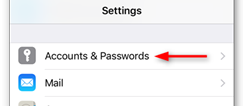
Step 1 - Go to Settings > Accounts & Passwords
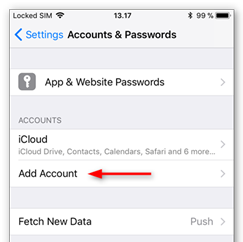
Step 2 - Tap Add Account
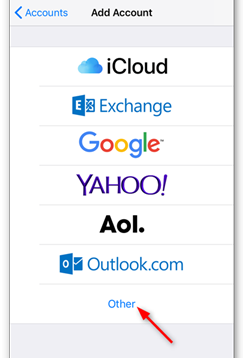
Step 3 - Tap Other as the account type.
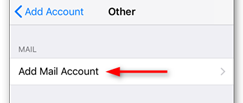
Step 4 - Tap Add Mail Account
Step 5 - Enter your account details
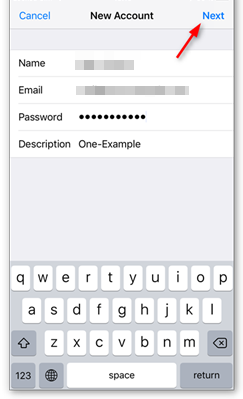
Fill in the details shown below and click "Next"
Name: Your Name
Email: Your SpinTel email address
Password: Your SpinTel email password
Description: This will automatically come up, but you can change it.
Step 6 - Select the account type (IMAP or POP)
IMAP (Recommended) stores your emails on the mail server and keeps your inbox, folders, sent items, and read/unread status synchronised across all your devices.
POP downloads emails to a single device. Depending on your email application's settings, downloaded emails may be removed from the mail server and won't automatically synchronise with your other devices.
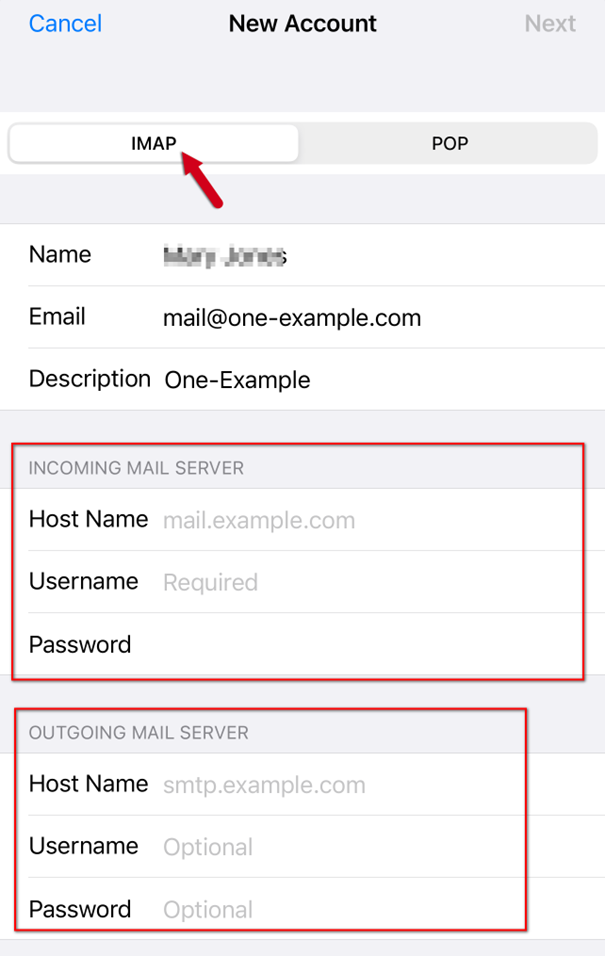
| Incoming Mail Server | IMAP (Recommended) | POP |
| Hostname | imap.spintel.net.au | pop3.spintel.net.au |
| Username | Your SpinTel email address (without @spin.net.au ) | Your SpinTel email address (without @spin.net.au ) |
| Password | Your SpinTel email password | Your SpinTel email password |
Outgoing Mail Server
Hostname: smtp.spintel.net.au
Username: (blank)
Password: (blank)
7. Tap Save, and your phone will try to verify again. This might take a few minutes.
If the phone prompts: Cannot Connect Using SSL. Do you want to try setting up the account without SSL?, tap YES.
8. Once it’s finished configuring, it will return to the Mail, Contacts, Calendar settings.
Setting up Mail on iPhone (iOS 15/16/17)
Step 1 - Go to Settings > Mail
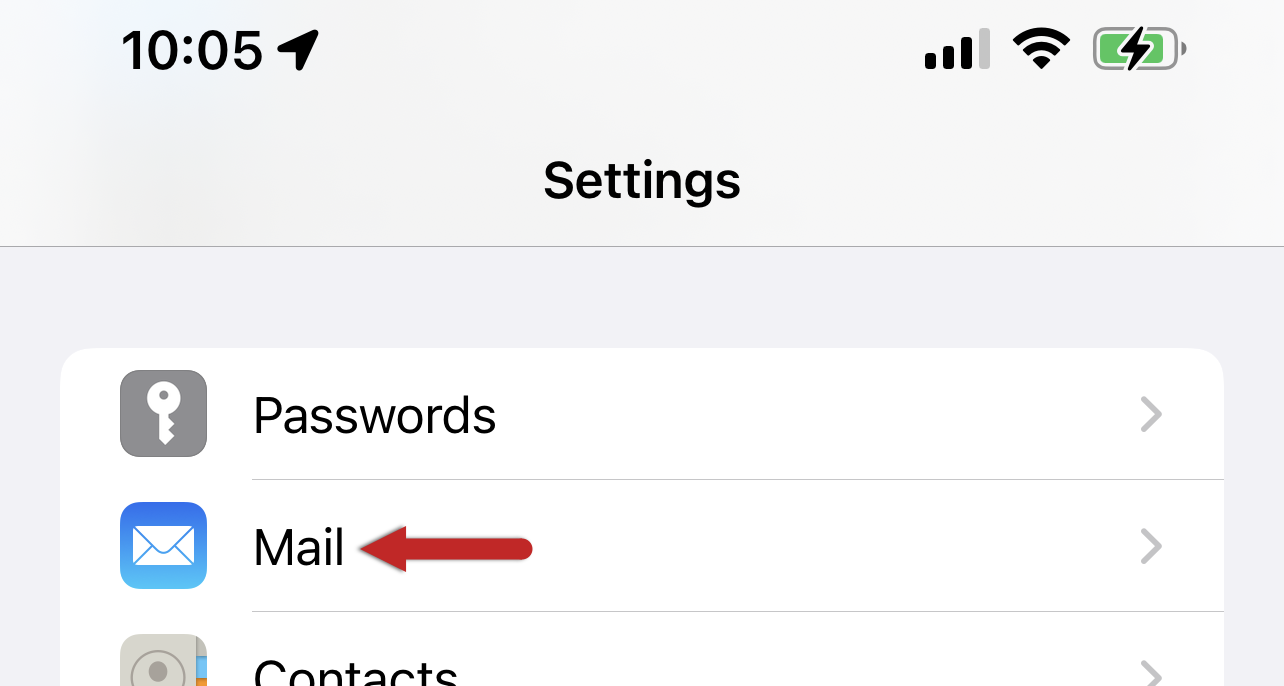
Step 2 - Tap Accounts
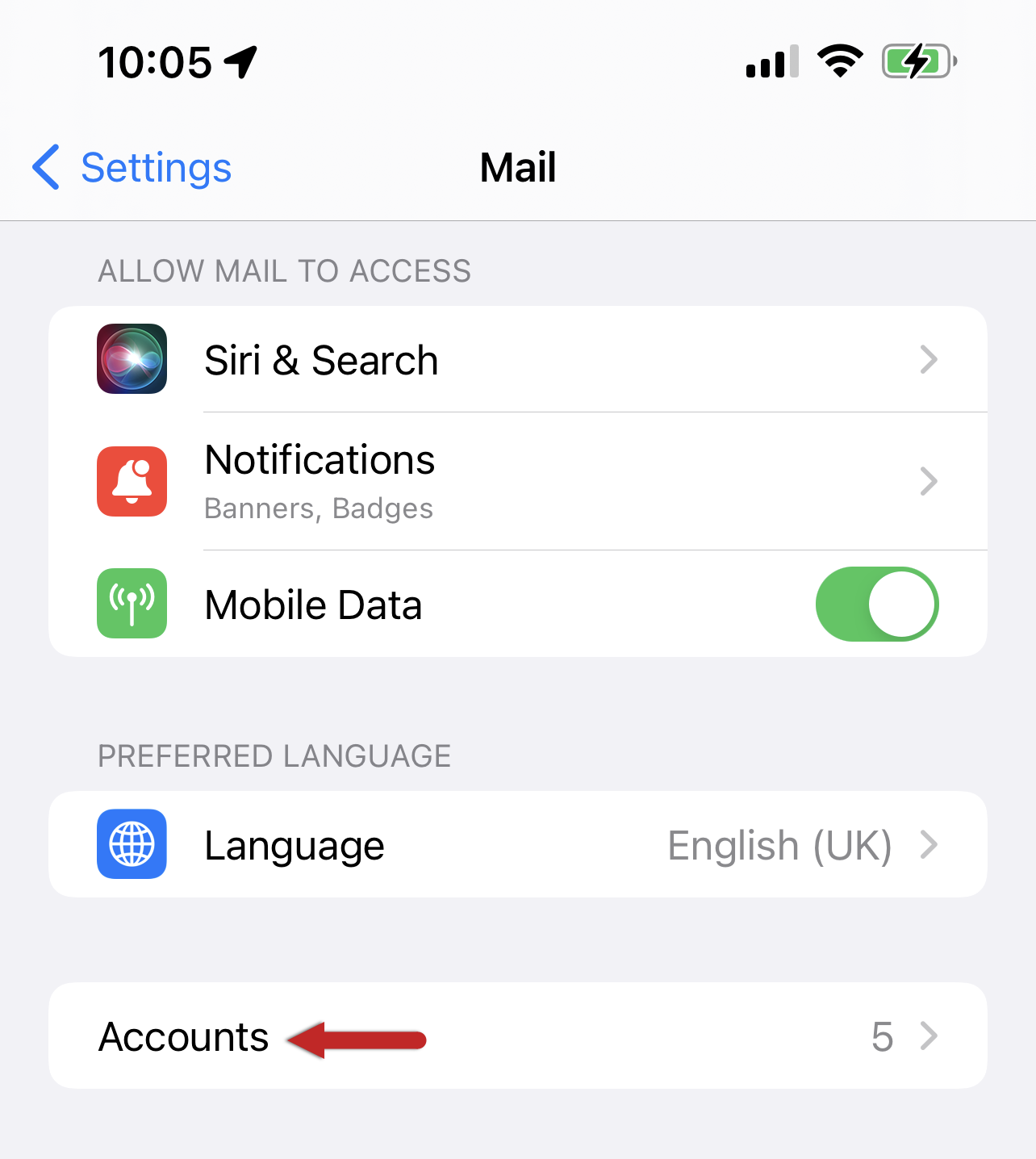
Step 3 - Tap Add Account
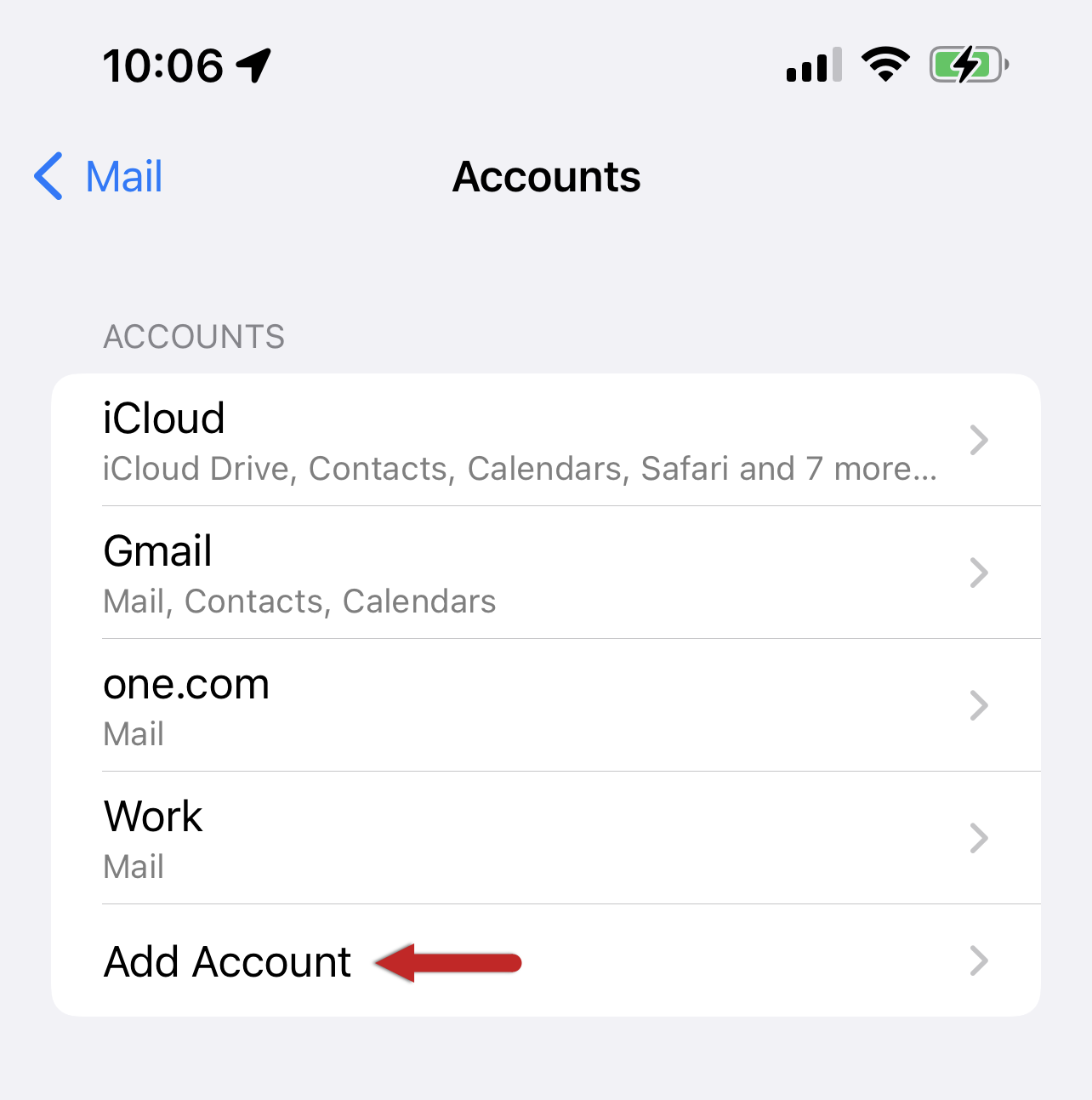
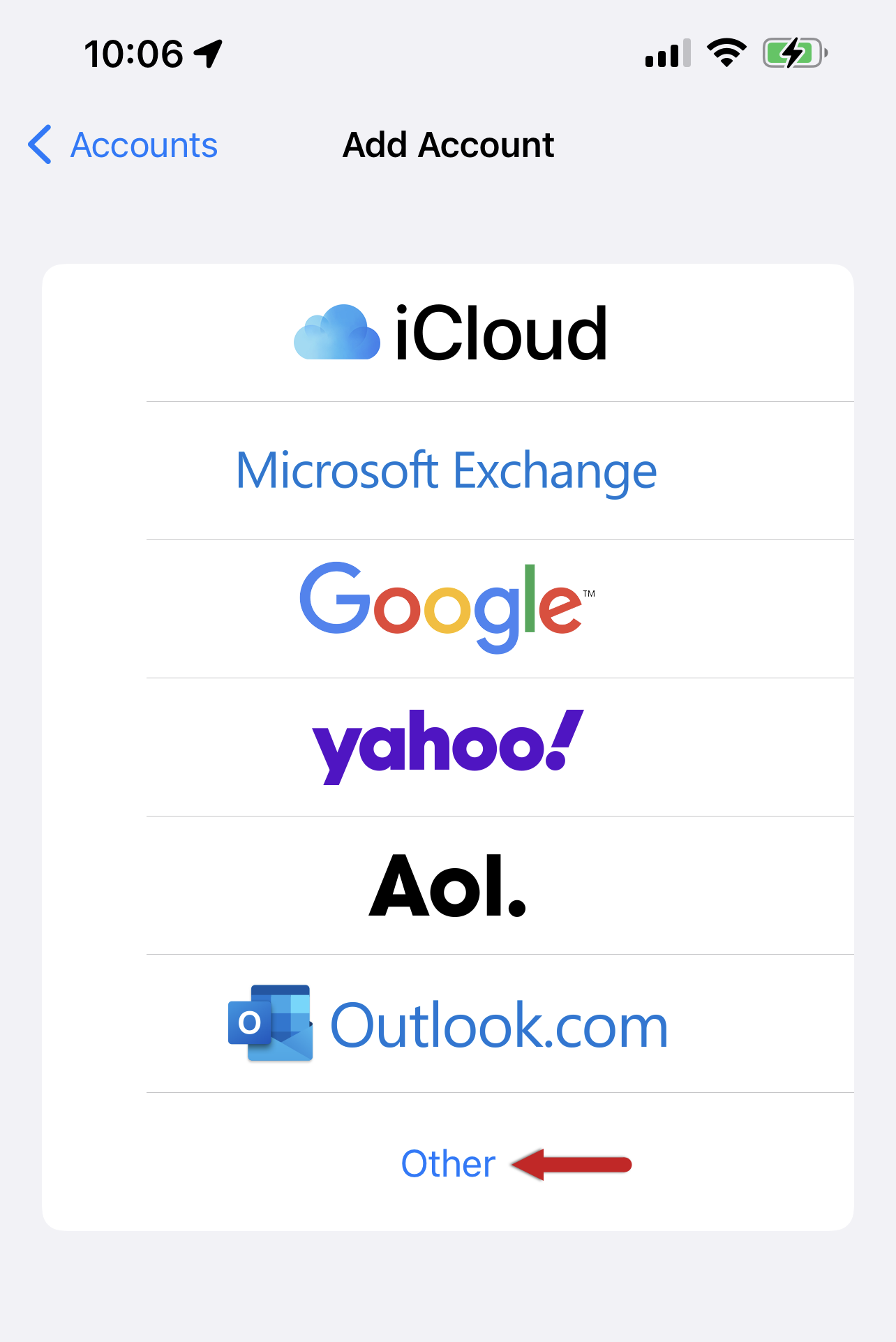
Step 4 - Tap Other
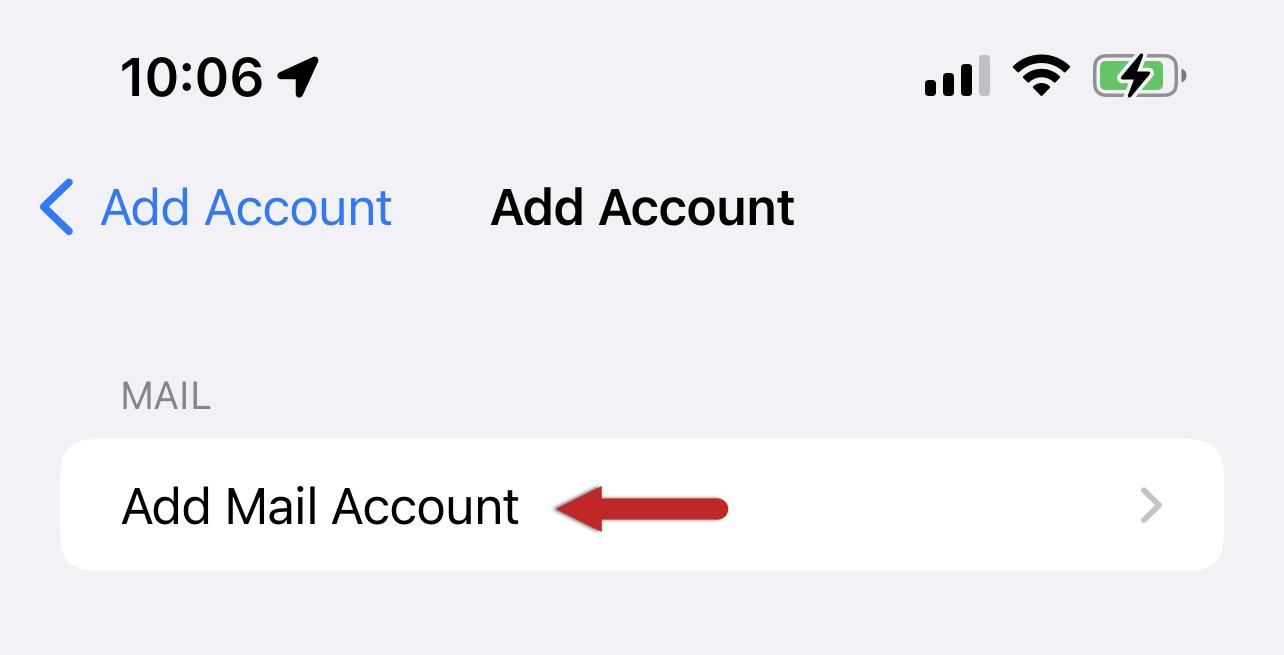
Step 5 - Tap Add Mail Account
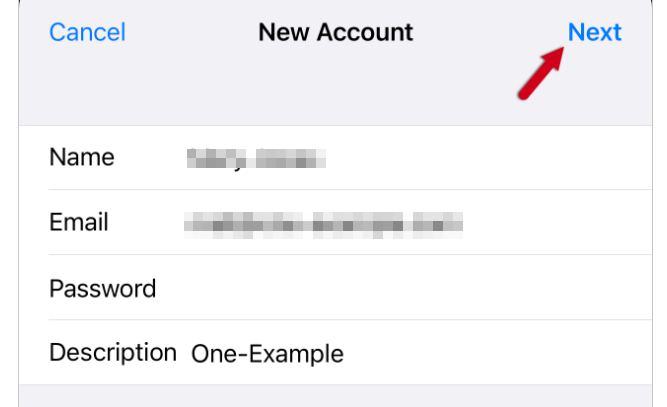
Step 6 - Enter your account details
Fill in the details shown below and click "Next"
Name: Your Name
Email: Your SpinTel email address
Password: Your SpinTel email password
Description: This will automatically come up, but you can change it.
Step 7 - Select the account type (IMAP or POP)
IMAP (Recommended) stores your emails on the mail server and keeps your inbox, folders, sent items, and read/unread status synchronised across all your devices.
POP downloads emails to a single device. Depending on your email application's settings, downloaded emails may be removed from the mail server and won't automatically synchronise with your other devices.
| Incoming Mail Server | IMAP (Recommended) | POP |
| Hostname | imap.spintel.net.au | pop3.spintel.net.au |
| Username | Your SpinTel email address (without @spin.net.au ) | Your SpinTel email address (without @spin.net.au ) |
| Password | Your SpinTel email password | Your SpinTel email password |
Outgoing Mail Server
Hostname: smtp.spintel.net.au
Username: (blank)
Password: (blank)
8. Tap Save, and your phone will try to verify again. This might take a few minutes.
If the phone prompts: Cannot Connect Using SSL. Do you want to try setting up the account without SSL?, tap YES.
Once it’s finished configuring, it will return to the Mail, Contacts, Calendar settings.
Congratulations, you have successfully set up your email.