
How to Request a SIM Replacement?
Estimated Reading Time: 1 MinutesLooking to switch from a physical SIM to an eSIM or get a new phone? You can easily request a SIM replacement through My Account.
The steps below apply only when replacing the SIM for an active mobile service. If the service is inactive or the order is still in progress and you need to change the SIM type, please contact us for assistance.
Note: A 2FA code is required to complete this request. If you’re unable to complete two-factor authentication (2FA) because you’ve lost access to your device (e.g., a lost phone, no access to SMS, or an authenticator app), please contact us for further assistance.
-
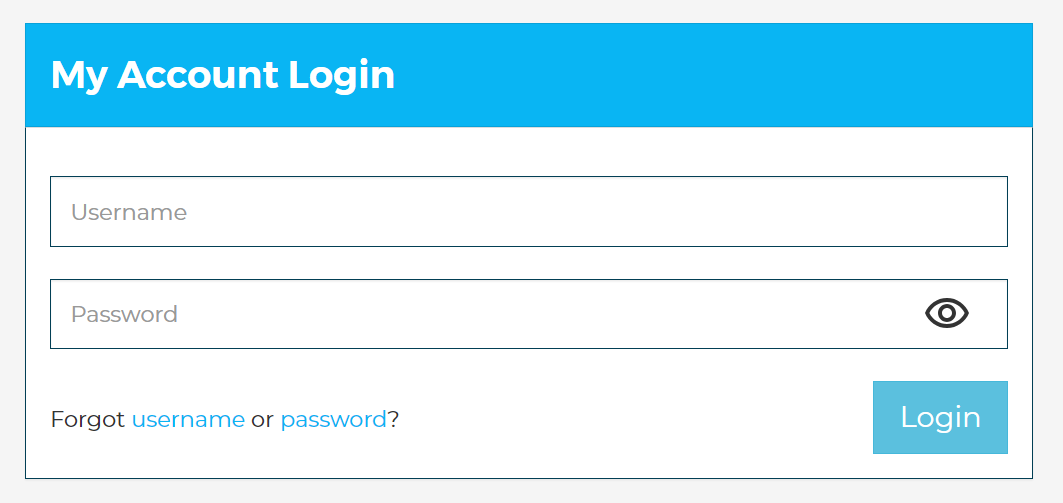
Log in to My Account with your username and password at https://www.spintel.net.au/my-account/login.
-
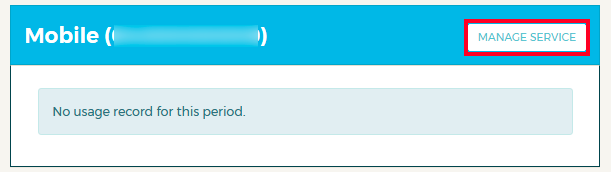
Once logged in, click on "Manage Service" for the mobile number associated with the replacement SIM.
-
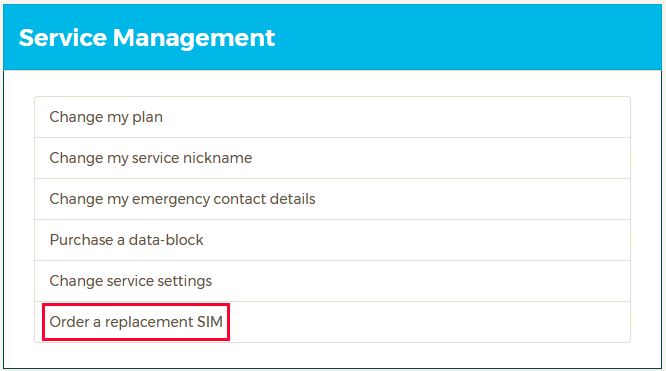
Scroll down to "Service Management" and click "Order a replacement SIM."
For Physical SIM:
-
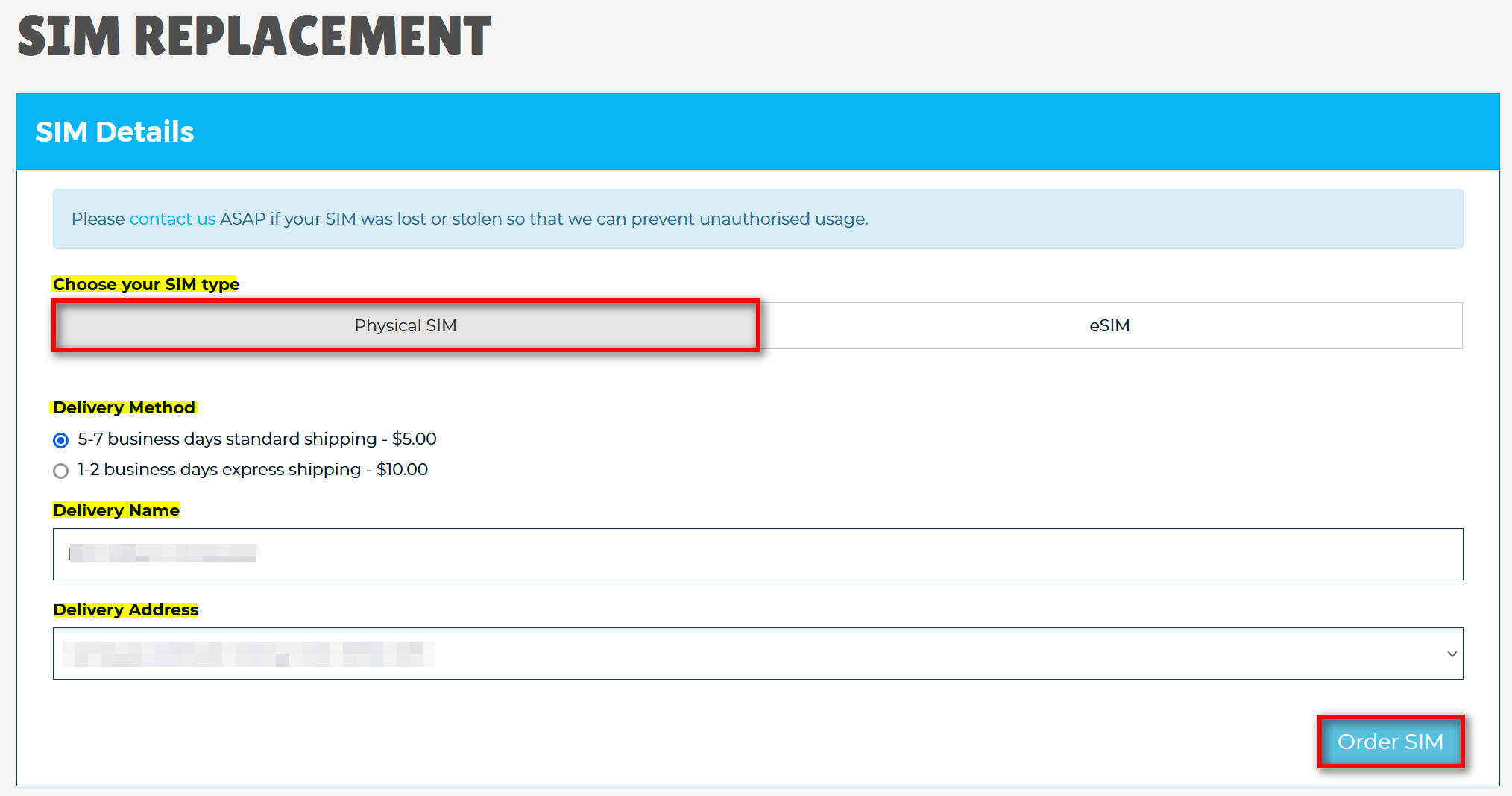
Select "Physical SIM" for the SIM type
-
Complete the SIM Replacement form and click "Order SIM" to place the order.
-
Once you receive the replacement SIM, visit the activation page to activate the new SIM.
For eSIM:
-
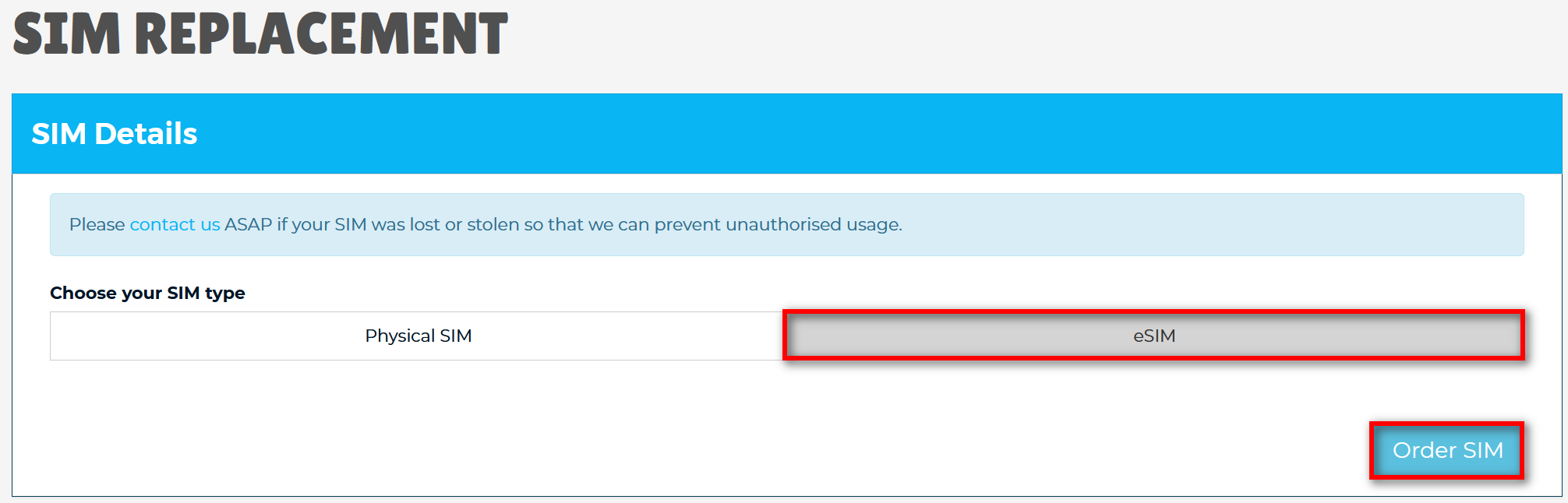
Select "eSIM" and click on "Order SIM." (Note: Ensure your device is eSIM-compatible by checking the supported device list or the manufacturer’s website.)
-
After placing the order, go to the activation page to activate the new SIM. A QR code will be emailed to you shortly, which you’ll need to complete the installation on your phone.
Need further assistance? Contact us and our team will be happy to help.