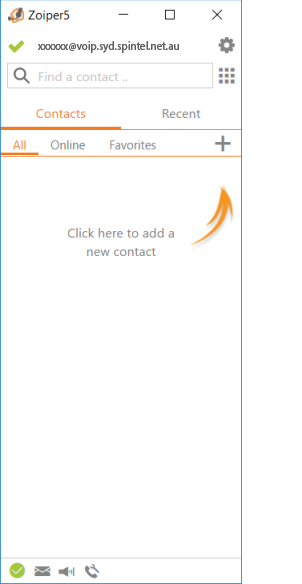
ZoIPer for Windows Setup
Estimated Reading Time: 1 Minutes1. Download and install the latest version of the program.
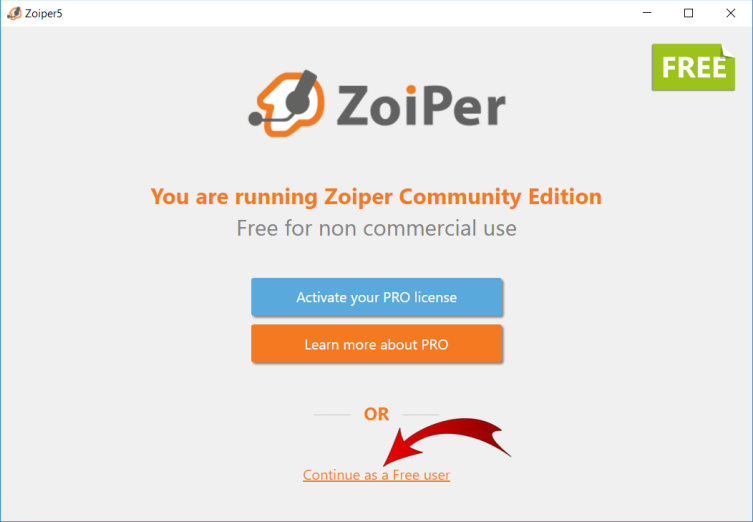
2. When a program starts, a message with a suggestion to buy a paid version appears. Click Continue as a Free user (at the bottom of the page).
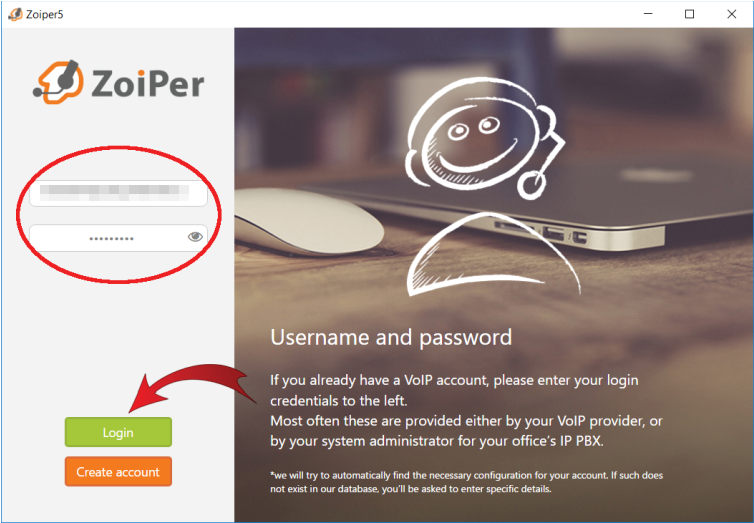
3. Use the server, login and password details from the "Settings”, “SIP Connection" section.
Username: Your SIP number
Password: Your SIP password
After you’ve entered the details, click the “Login” button.
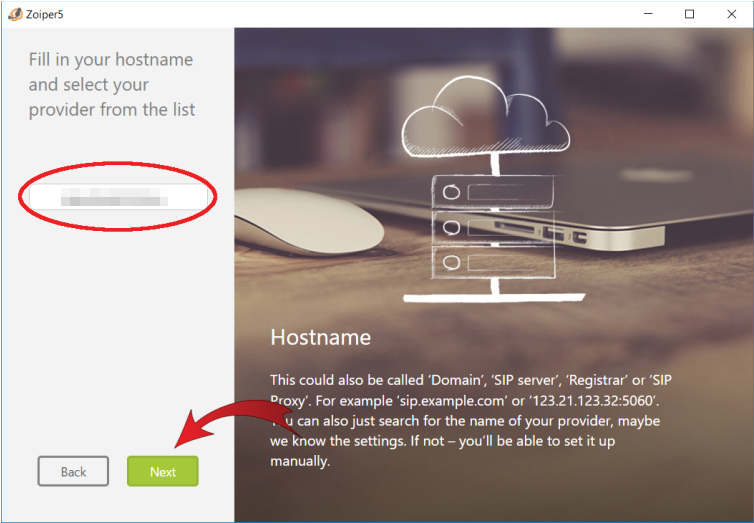
4. On the next page, enter 203.23.236.96 for the server address and click Next.
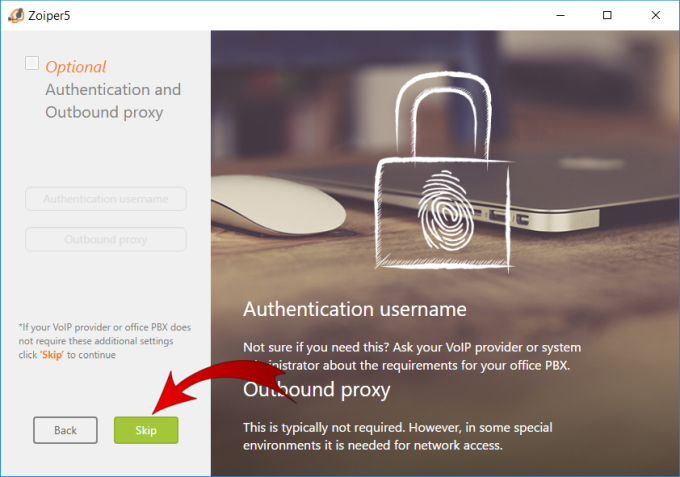
5. Click the “Skip” button
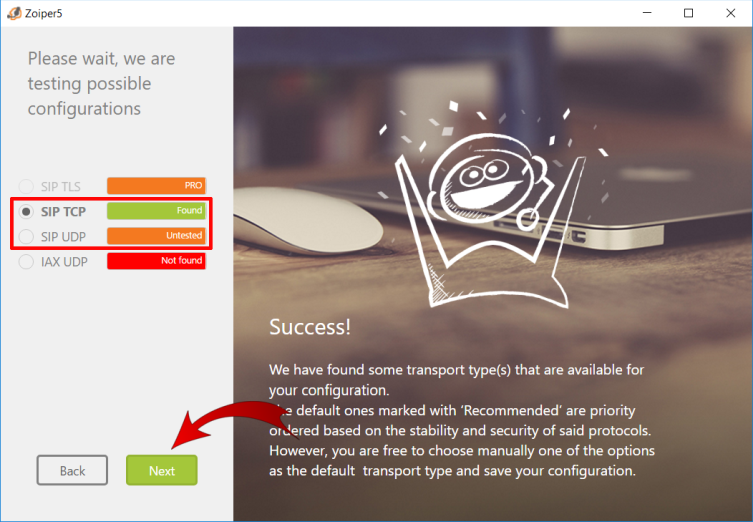
6. At the next stage, Zoiper will try to find a priority transport for your network. Select SIP UDP or select SIP TCP if the first one has the Untested status. Then click "Next".
You can test the audio devices on the next page. The setup is now complete.