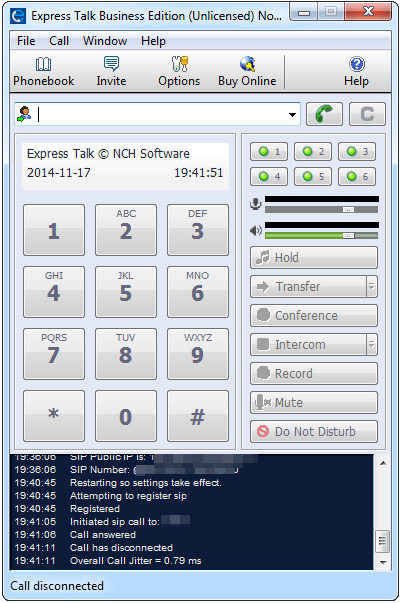
Express Talk for Windows Setup
Estimated Reading Time: 1 Minutes1. Download the application.
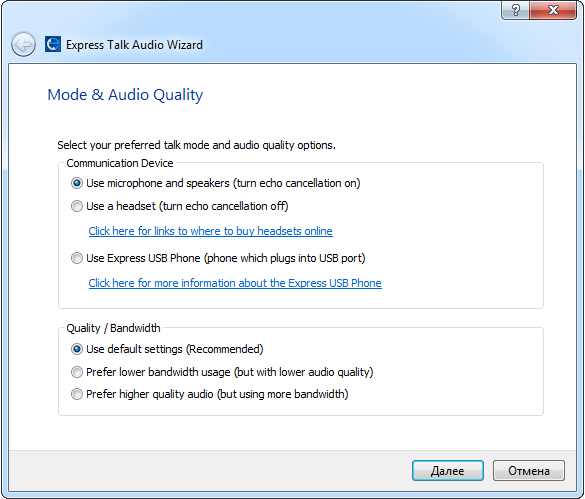
After the installation, open the «Mode & Audio Quality» tab. In the Communication Device section, select "Use microphone and speakers". In the Quality / Bandwidth section, select "Use default settings (Recommended)". Click "Next"
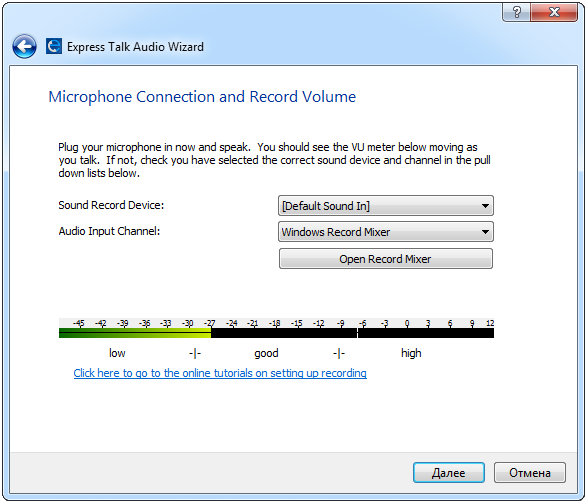
2. Select your hardware from the Sound Record Device options list in the Microphone Connection and Record Volume section. Leave the Audio Input Channel as the default. Click "Next".
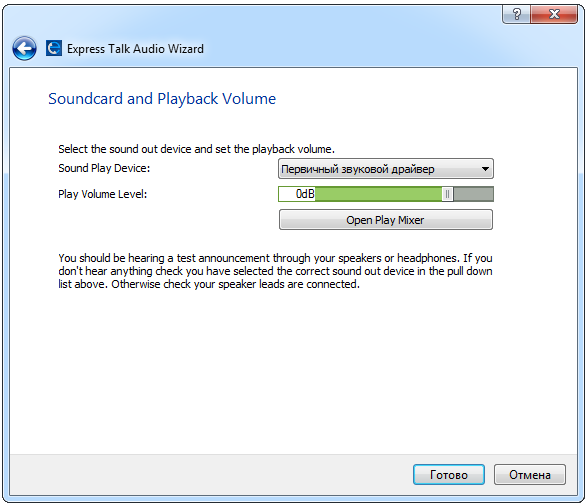
3. Select your hardware from the Sound Play Device options list in the Soundcard and Playback Volume section. Click "Next".
4. Right-click with your mouse on line 1 and select "Configure Line"
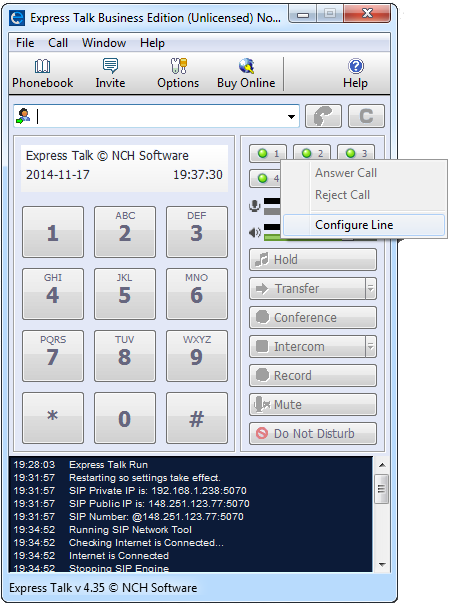
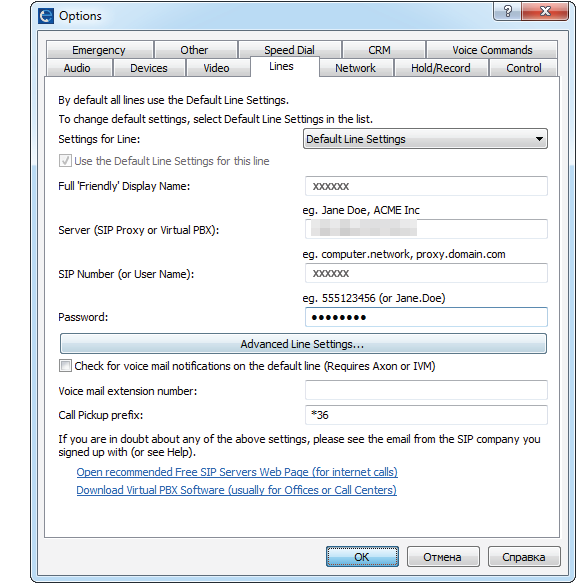
5. Enter the following settings:
Full 'Friendly' Display Name: (Your SIP number)
Server (SIP Proxy or Virtual PBX): 203.23.236.96
SIP Number (or User Name): (Your SIP number)
Password: (Your SIP number password)
6. Softphone is set.