
How to Add or Update Service Nicknames and Groups in My Account Portal
Estimated Reading Time: 1 MinutesYou can personalise and organise your services in the My Account Portal by adding service nicknames or creating service groups. This helps you easily identify and manage multiple services.
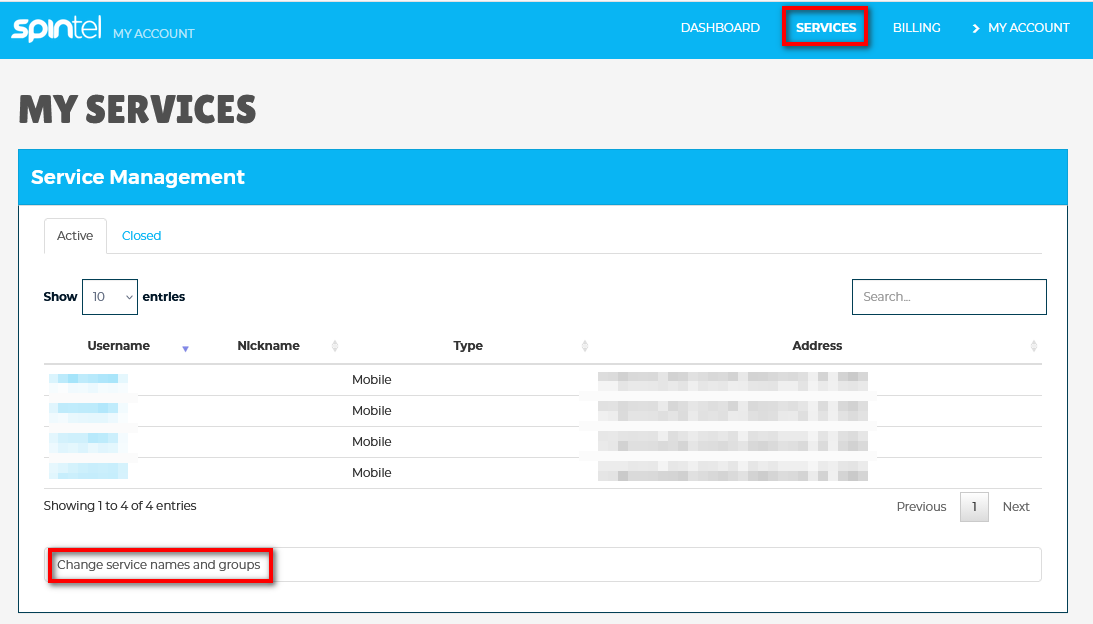
How to Access Service Name and Group Settings
1. Log in to the My Account Portal
2. Go to Services and click Change Service Names and Groups
How to Add or Update a Service Nickname
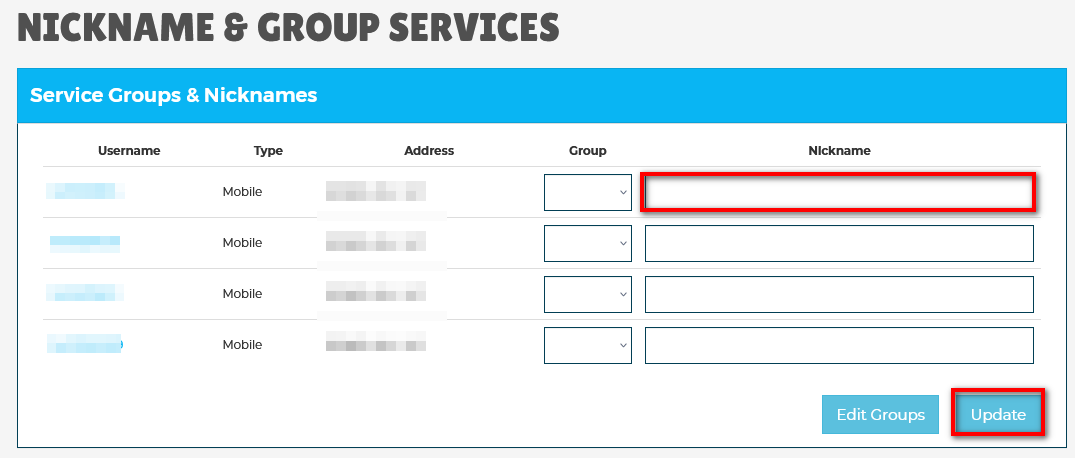
To set or update a nickname for a service:
- Locate the relevant service
- Enter your preferred nickname in the text field next to the service
- Click Update to save and apply the changes
How to Create or Manage Service Groups
To organise your services into groups:
- Scroll down and select Edit Groups
- To modify an existing group, click Edit next to the group name
- To create a new group, select Add New Group and enter the group name
- Click Save to confirm your changes
Assign Services to Groups
Once groups are created:
- Go back to Edit Groups
- Assign each service to the relevant group by selecting the appropriate group from the options
- Save your changes to apply the grouping
Summary
Using nicknames and groups allows you to better organise your services in the My Account Portal, making it easier to identify and manage multiple services under one account.